 Complete VR Studio
Home › Guides › VITURE color calibration
VITURE color calibration on PC
VITURE glasses can look great out of the box, but many owners see a color cast (often slightly blue or green), crushed shadows, or a small color difference between the left and right eye. On a Windows PC you can fix much of this. This guide starts with free, general calibration steps, then shows how per-eye color in Complete VR Studio can handle what Windows can't.
Step 1: Prepare a fair test
- Let the glasses warm up for a few minutes and use them in the lighting you normally use.
- If your model has electrochromic dimming, set it to the darkest level while calibrating, so room light doesn't wash out colors.
- Open a few known reference images: a grayscale ramp, a skin-tone photo and a pure white page.
Step 2: Use the glasses' own settings
Set brightness to a comfortable level first. Very high brightness exaggerates color casts and can tire your eyes. Then check whether your glasses' own menu offers color or display modes, and pick the most neutral one.
Step 3: Calibrate in Windows
- Search Windows for Calibrate display color (dccw) and run it with the glasses selected as the display. It walks you through gamma, brightness, contrast and color balance.
- Turn off Night light for the glasses' display while calibrating, or it will add a warm tint.
- If you use HDR in Windows, calibrate with HDR off first, then decide whether HDR actually looks better on your glasses.
Step 4: Check each eye separately
Look at a white page and close one eye at a time. If one eye looks warmer, cooler or dimmer, Windows calibration can't fix it, because Windows treats the glasses as a single display. A left/right color mismatch makes the image look slightly unstable and can add to fatigue. Our eye strain guide covers more causes.
How Complete VR Studio helps
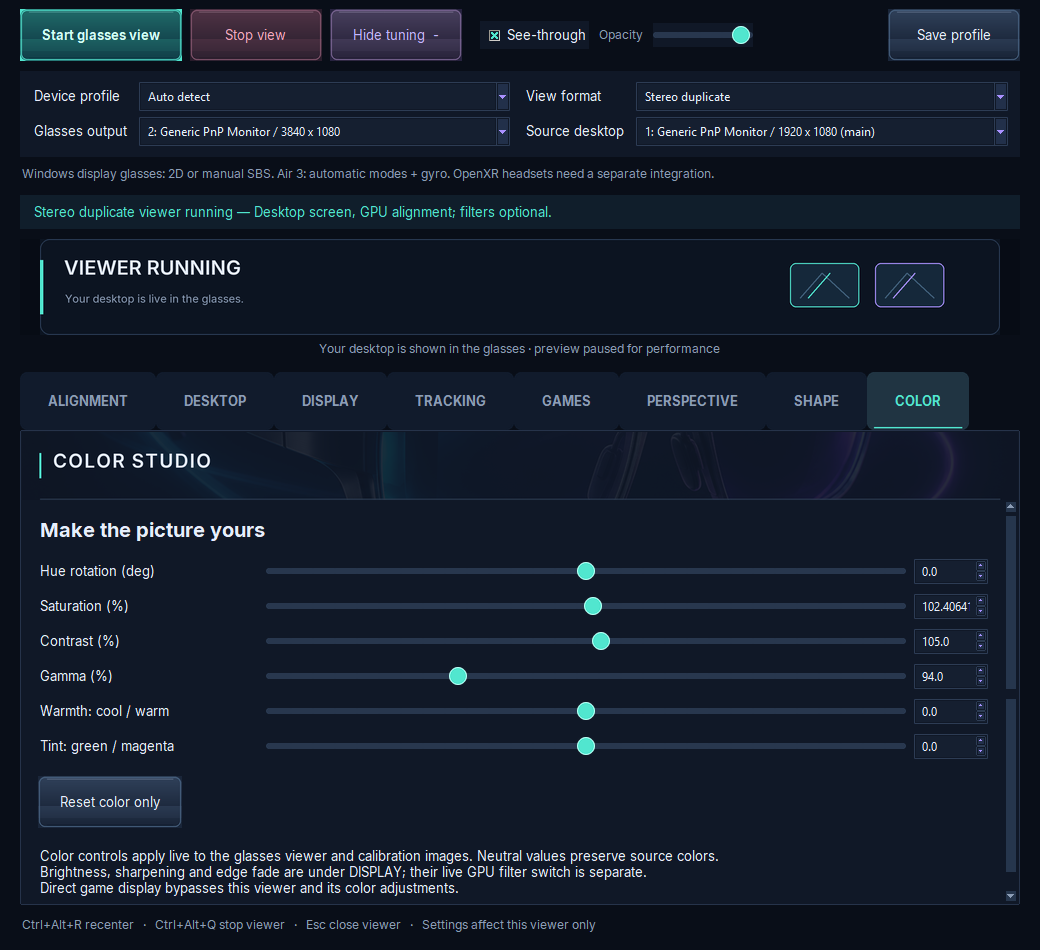
Complete VR Studio adds per-eye color controls on a Windows PC, so you can tune the left and right eye independently. That lets you:
- Correct a color cast in only the eye that has it.
- Match brightness between eyes so the fused image looks even.
- Keep the rest of your Windows color settings untouched.
Make small changes, look at your reference images with both eyes, and compare against processing off. Because the VITURE profile isn't validated yet, please tell us how it works for your model.
Trial, price and how to get it
Complete VR Studio is a Windows 10 (version 19041 or newer) and Windows 11 x64 app, currently at version 1.0.0-preview.10. Premium features are included in a 7-day trial from install, and basic viewing keeps working until day 90. Activation costs about $5 in Bitcoin during the trial, or about $25 after it, paid in Bitcoin only. It's built security-first. See trial & pricing and compatibility for details.
FAQ
How do I calibrate VITURE glasses on Windows?
Set a comfortable brightness, choose the most neutral mode, run Windows Calibrate display color with the glasses selected, then check each eye separately.
Why does one eye look a different color?
Each eye has its own display and optics, so small differences happen. Windows can't correct one eye only; per-eye color tools can.
Is VITURE fully supported?
Complete VR Studio has a manual VITURE profile that has not been validated yet.